
Keeper is a versatile password manager that provides a range of verification choices and an easy-to-use interface.
This guide will walk you through the steps of configuring Keeper, its operational use, and how to fully exploit its features for your institution.
Step-by-step guide to utilizing Keeper
1. Selection of a Keeper Subscription Plan
Keeper provides two subscription options: Personal & Family and Organizations. The Personal & Family plans are consumer-focused, while Organizations are tailored for businesses of all sizes.
In our review, Keeper was rated 4.4 out of 5 stars. You can find the complete review of Keeper here.
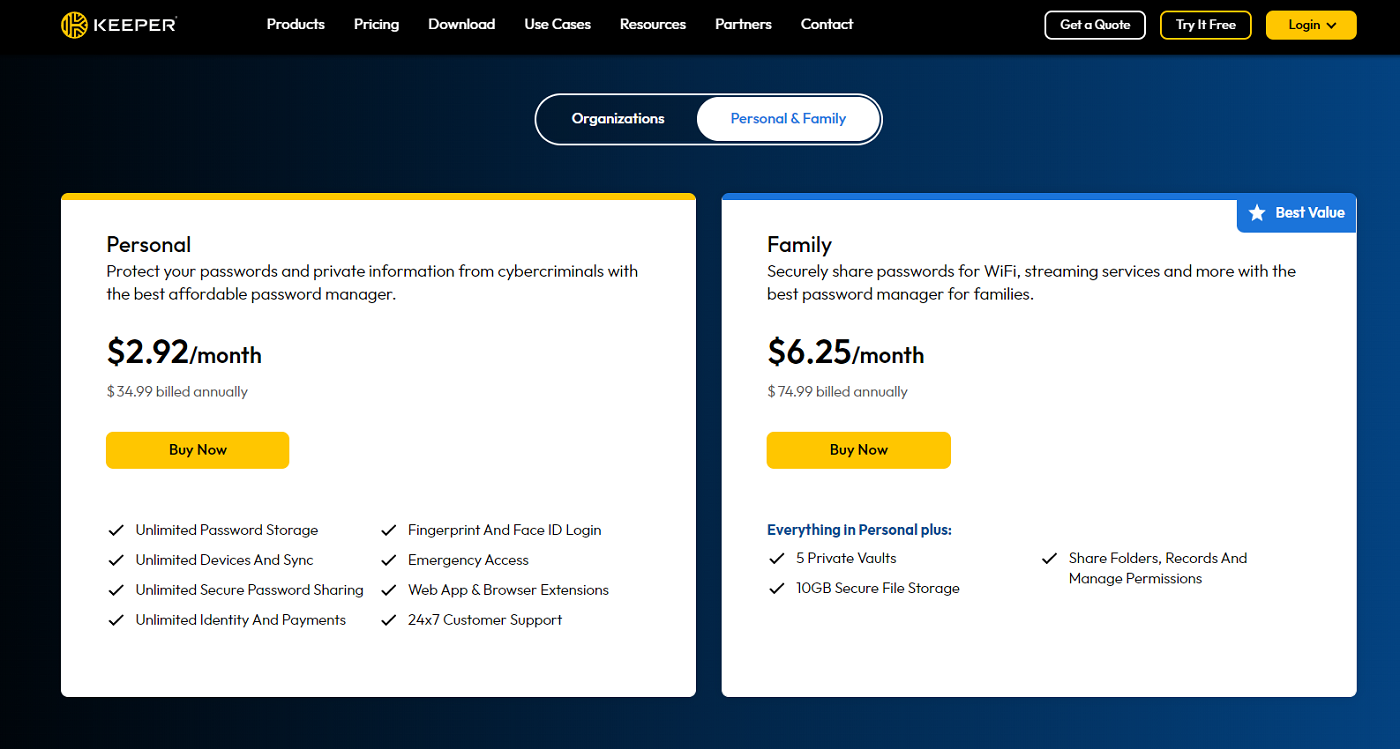
The Personal or Unlimited plan of Keeper is priced at $2.92 per month and includes one user vault. The Family plan costs $6.25 per month for five user vaults.
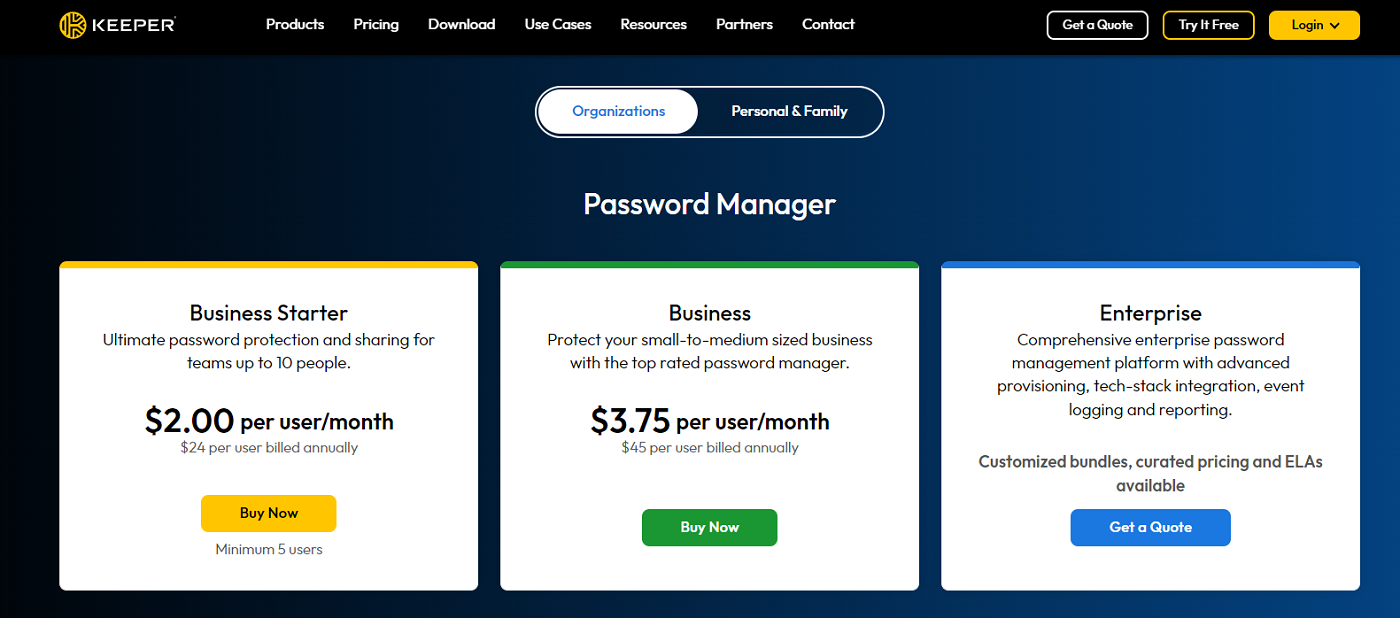
The different Organizations plans comprise Business Starter, Business, and Enterprise. Keeper Business Starter caters to teams of up to ten members, with prices starting at $2 per user monthly and $3.75 per user on the Business plan.
Keeper Enterprise focuses on large corporations and offers additional business-oriented functionalities. Contact Keeper for customized Enterprise pricing.
Keeper provides a generous 30-day trial for Keeper Personal and a 14-day trial for Keeper Business, both without needing credit card details.
I strongly suggest selecting the plan suitable for your needs or business and utilizing their trial period. This allows you to explore Keeper’s password management features without committing to a paid subscription. Keeper has a free version, albeit with limited functions and only on the mobile app.
2. Installation of the Web App and Browser Extension
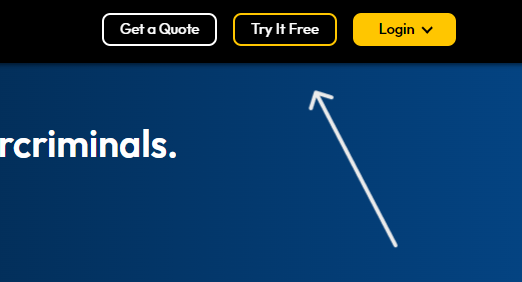
To access one of Keeper’s free trials, click the “Try It Free” button on the top of Keeper’s Pricing page and choose your desired plan. For this guide, we will opt for Keeper Personal.
When you begin with Keeper, you will need to enter an email address. Following this, you will be directed to the Keeper web app. Subsequently, you will be prompted to submit your email address and generate a Master Password.
The master password is essentially the sole password that you must create by yourself. It grants access to your Keeper vaults, where all your data and credentials will be stored.
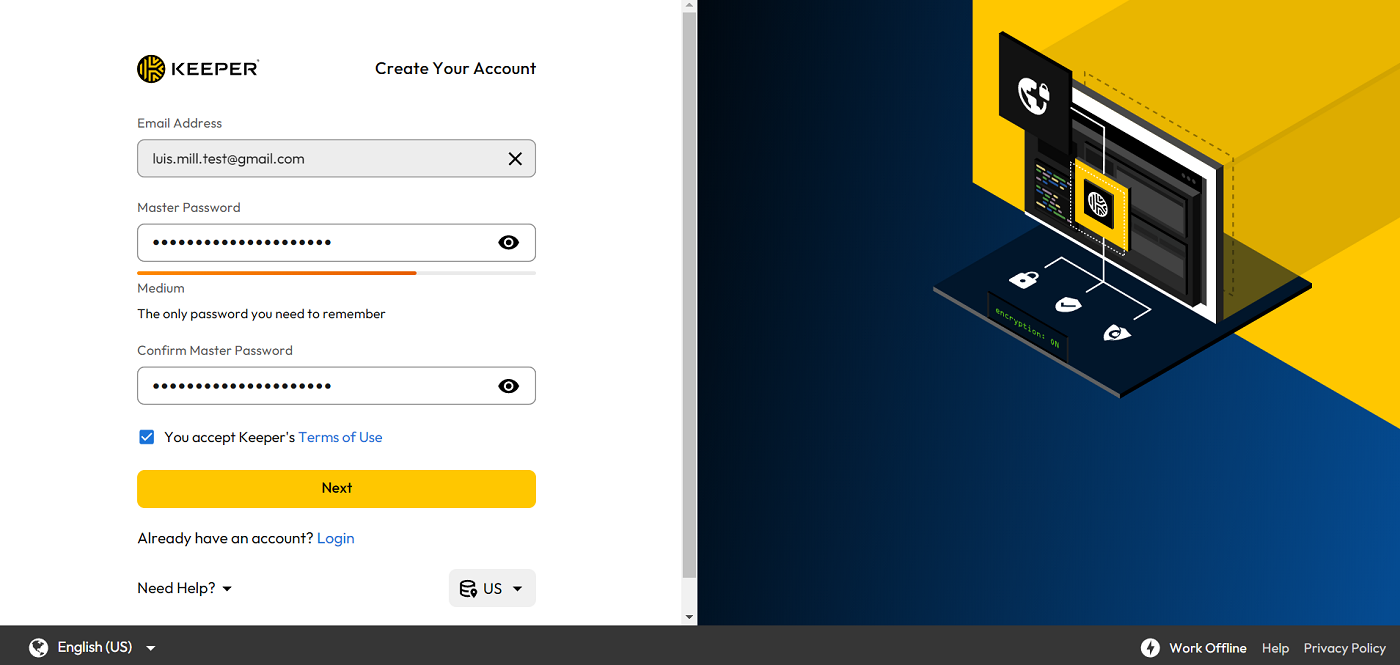
Since it serves as the primary access point to all your passwords, it is vital to memorize your master password. Keeper will send a verification code to your email and require you to insert it in their application.
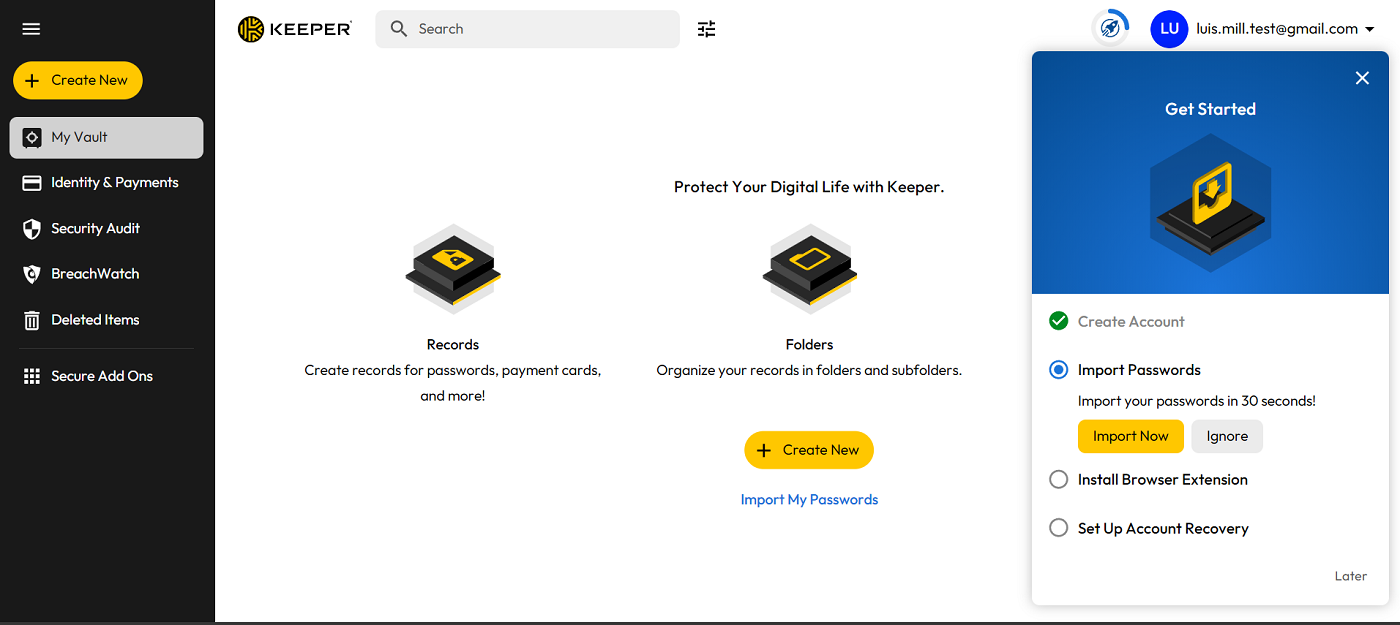
After entering the code, you will gain access to Keeper’s complete web vault!
3. Operating Keeper
Upon your initial interaction with Keeper’s web vault, you will receive tutorials on importing passwords, installing the browser extension, and configuring account recovery.
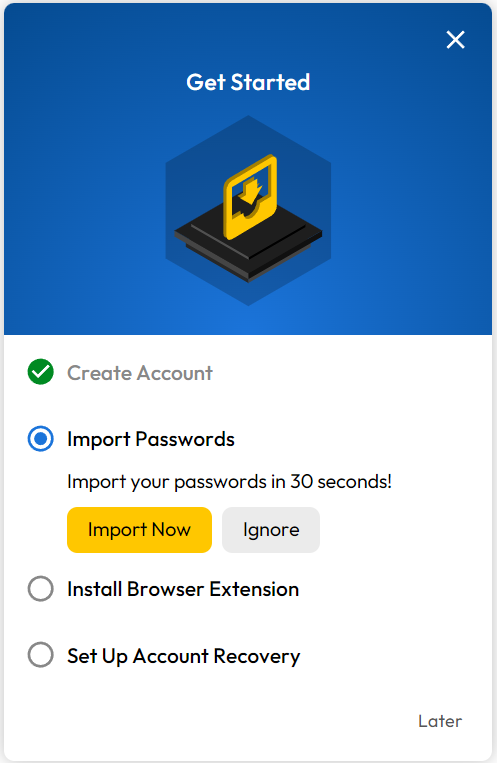
Out of the three tutorials, begin with the browser extension tutorial. This will enable you to have Keeper’s extension readily available on your browser, enhancing your password management experience.
If you are utilizing Chrome, you can acquire Keeper Password Manager from the Chrome Web Store. With both the Keeper web app and browser extension now installed, you can commence storing and overseeing your passwords.
Allow me to showcase the method of securing your primary login by illustrating a step-by-step guide while forming a fresh account on Goodreads. Upon reaching the account setup page on Goodreads, you’ll notice the presence of the Keeper emblem on the password field. Upon tapping it, the Keeper password generator will be revealed.
The automated password generator in Keeper fabricates a unique password for each fresh login. Within the generator, you can specify the desired password length and whether it should include numbers, letters, symbols, or a combination of all three. By default, Keeper’s password manager crafts a 20-character password with a limit of 100 characters.
Once you’ve entered your new account particulars, the Keeper browser extension will prompt you to store the recent login in your Keeper safe.
By selecting “OK,” you officially safeguarded your initial login within Keeper!
Guidelines for optimizing Keeper’s potential
Initially, Keeper offers advanced safety measures in guarding your passwords. However, several steps can be employed to fully enhance its functionalities.
Install Keeper’s exclusive desktop application
I strongly propose installing one of Keeper’s desktop applications alongside its browser integration. This delivers a more structured outlook of your encrypted vault and eliminates any potential sluggishness that may transpire in your browser, especially if you expect frequent access to various login credentials.
Presently, Keeper’s dedicated desktop applications cater to Windows, macOS, and Linux platforms.
Explore Keeper’s premium extensions
It is advisable to explore Keeper’s secure extensions, which are optional upgrades to your Keeper subscription offering supplementary features. Notably, Keeper’s BreachWatch and KeeperChat extensions stand out.
BreachWatch monitors the dark web, while KeeperChat is a secure messaging platform integrated with Keeper Password Manager.
Utilize Keeper’s discounts for specific groups
Keeper extends substantial discounts to military personnel, first responders, healthcare professionals, and students. Particularly, Keeper imparts a 50% discount for students and a 30% discount for military personnel, first responders, nurses, physicians, and other healthcare staff.
If you belong to any of these categories, I recommend availing the discount to attain a more budget-friendly annual fee.
Implement two-factor authentication
For added security layers, I propose activating Keeper’s 2FA features. Enabling this will necessitate an additional code or token to access your vault.
For access to the 2FA settings, follow these steps:
- Access the Keeper web vault.
- Click on your email at the top right corner.
- Access Settings.
- Select Security.
- Choose Two-Factor Authentication.
There, you’ll be able to customize 2FA within Keeper, including selecting your preferred notification method.
Assign trusted contacts for emergencies
Designating a trusted contact through Keeper’s Emergency Access feature is among the prime methods to leverage its capabilities — especially during emergencies.
This allows your loved ones to access your vault in case of an emergency where you cannot reach your credentials.must be obtained.
To choose a reliable contact, execute the following instructions:
- Proceed to your Keeper web vault.
- Tap on your email located on the top right corner.
- Opt for Account.
- Press on Emergency Access.
- Pick Trusted Users.
Following that, you can assign five Keeper users as emergency contacts.
Please take note: if your selected trusted contact is not an existing Keeper user, they will receive an email inviting them to establish a Keeper account of their own. Only post creating their account will they be able to accept your Trusted Users request.
Prime approaches to leverage Keeper for your enterprise
Keeper arrives with the fundamental functions we anticipate from a password manager — like password creation, an encrypted vault, and emergency access. Beyond these, it also provides convenient features that can have a positive effect on your business’ daily operations.
Sharing credentials among teams
While many password managers present password sharing, Keeper has a unique One-Time Share functionality that enables users to share passwords and restrict access to only one device. With this, solely the initial recipient of the password can retrieve it, preventing unauthorized sharing of credentials with external parties.
This tool can be beneficial for enterprises working regularly with freelancers or contractors and aiming to securely share login information. One-Time Share also permits sharing of records without the need for the recipient to set up a Keeper account.
Monitoring overall password integrity
You can utilize Keeper to evaluate the integrity of all your passwords through its Security Audit feature. Security Audit evaluates the potency of each password, examines if it’s duplicated or weak, and furnishes specifics on when it was last changed.
This serves as an excellent method to monitor the overall integrity of your and your team’s account credentials and ensure no accounts are vulnerable to unauthorized access.
Efficiently populate frequently used logins
KeeperFill is Keeper’s primary autofill extension that empowers users to quickly input saved logins in their regularly accessed applications. While many password managers offer autofill, KeeperFill is renowned for its swift and dependable performance in replaying logins.
This is advantageous for enterprises utilizing numerous online services or apps daily and desiring to avoid the hassle of manual login procedures.
SEE: SMB Security Pack (TechRepublic Premium)
Suggested substitute password managers
If Keeper doesn’t match your requirements, I propose exploring one of these alternate password managers.
| Keeper | NordPass | 1Password | Zoho Vault | |
|---|---|---|---|---|
| Star rating (out of 5) | 4.4 out of 5 | 4.6 out of 5 | 4.3 out of 5 | 3.9 out of 5 |
| Commencing price (annually) | $2.92 per month | $1.69 per month | $2.99 per month | $0.90 per user, per month |
| No-cost version | Mobile only; maximum of 10 passwords stored | Yes; unlimited passwords for 1 device at a time | No free version; 14-day free trial only | Yes; unlimited passwords for unlimited devices |
| Distinguishing feature | Discounts for students, military, medical personnel; One-Time share for secure password sharing to third parties | Utilizes future-proof XChaCha20 encryption; choice between 1 and 2-year plans | Modern and beginner-friendly user interface; Travel Mode to hide sensitive vaults while on the go | Password reports dashboard; Super audit feature for extensive monitoring |

For individuals seeking an all-encompassing security solution, NordPass proves to be an excellent choice. Users can acquire a package that encompasses Nord Security’s renowned NordVPN service along with the NordPass password manager. This guarantees a secured, encrypted internet connection, as well as password protection.
To delve deeper, peruse our complete NordPass review.
An additional option to consider is 1Password. 1Password proves to be a commendable solution for frequent travelers due to its distinctive Travel Mode feature. Travel Mode automatically eliminates passwords deemed as “unsafe for travel,” shielding your passwords from prying eyes during immigration and customs procedures.
To learn more, read our detailed 1Password review.
If you’re a managerial figure seeking to keep tabs on shared credentials, Zoho Vault deserves a spot on your list. It features a real-time audit capability that enables users to monitor every action conducted within an organizational vault. This encompasses password requests, timestamps, and even user IP addresses.
To gain more insight, read our comprehensive Zoho Vault review.
About Author