If you’ve recently acquired or been given a Windows 11 PC, one of the primary things I suggest is to incorporate fingerprint recognition as one of your sign-in alternatives. This increases the security level on your computer or laptop and streamlines the login procedure compared to a traditional password.
While the implementation of fingerprint recognition may vary on Windows devices, configuring fingerprint logins remains relatively consistent across all Windows 11 computers.
In this post, I will demonstrate the process of integrating fingerprint recognition with your Windows 11 PC, respond to some frequently asked questions, and outline a few advantages of using fingerprint unlock for your system.
How Do I Establish Fingerprint Recognition on Windows 11?
Before we proceed, it’s important to note that this guide is applicable to laptops or PCs equipped with a fingerprint sensor. Nowadays, many personal and business laptops come with an embedded fingerprint sensor.
For those lacking a sensor, various USB fingerprint sensors are available for separate purchase. These sensors can be plugged into your PC’s USB ports, providing fingerprint functionality without adding much bulk to your system.
With that clarified, let’s begin the setup process for fingerprint recognition on your Windows 11 PC.
1. Access the Windows 11 Settings app.
The initial step in activating fingerprint recognition is to open the Settings app in Windows 11.
There are several methods to access the Windows Settings app. In my opinion, the quickest way is to press the Windows Key on your keyboard and commence typing “settings.” This action will immediately display the Settings app in your Start menu.
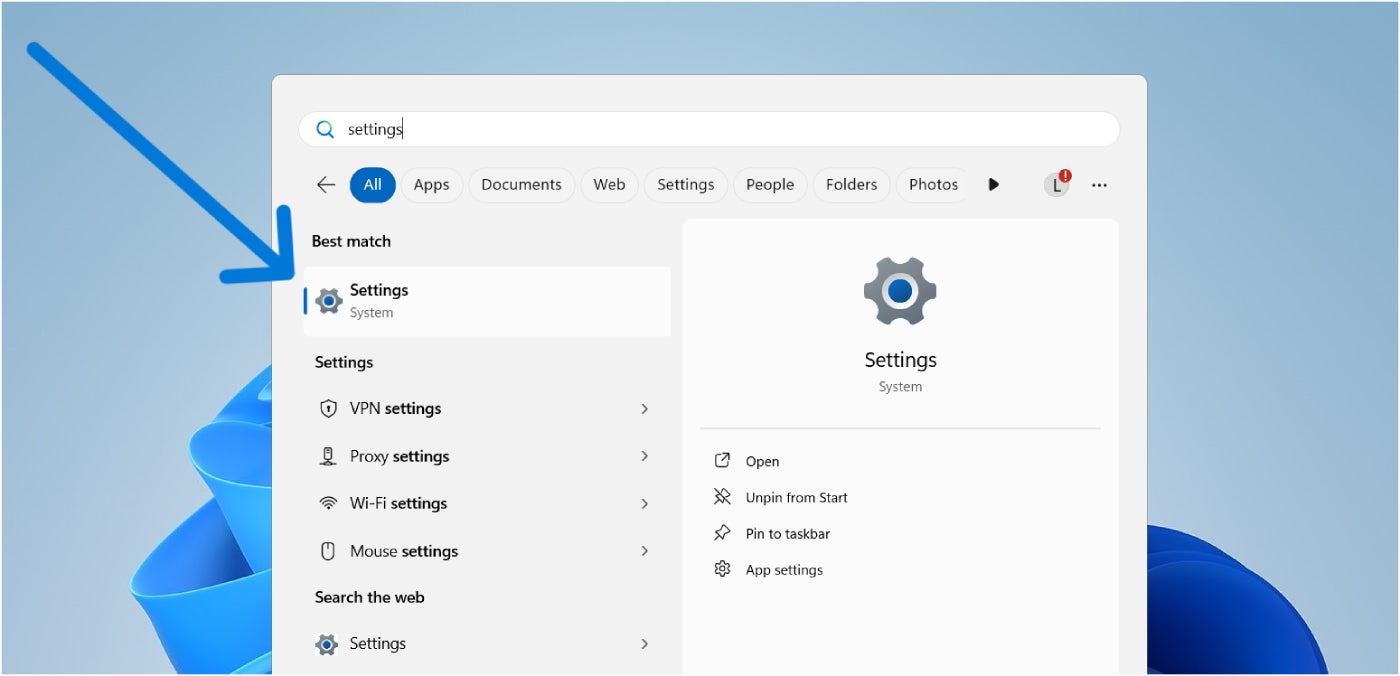
You can also find the Settings app in the Start menu by browsing through your applications. Usually, the Settings app is located at the bottom of the list since apps are sorted alphabetically by default.
2. Go to the Accounts section in the sidebar.
Once you have the Settings app open, direct your attention to the left sidebar and choose the Accounts section.
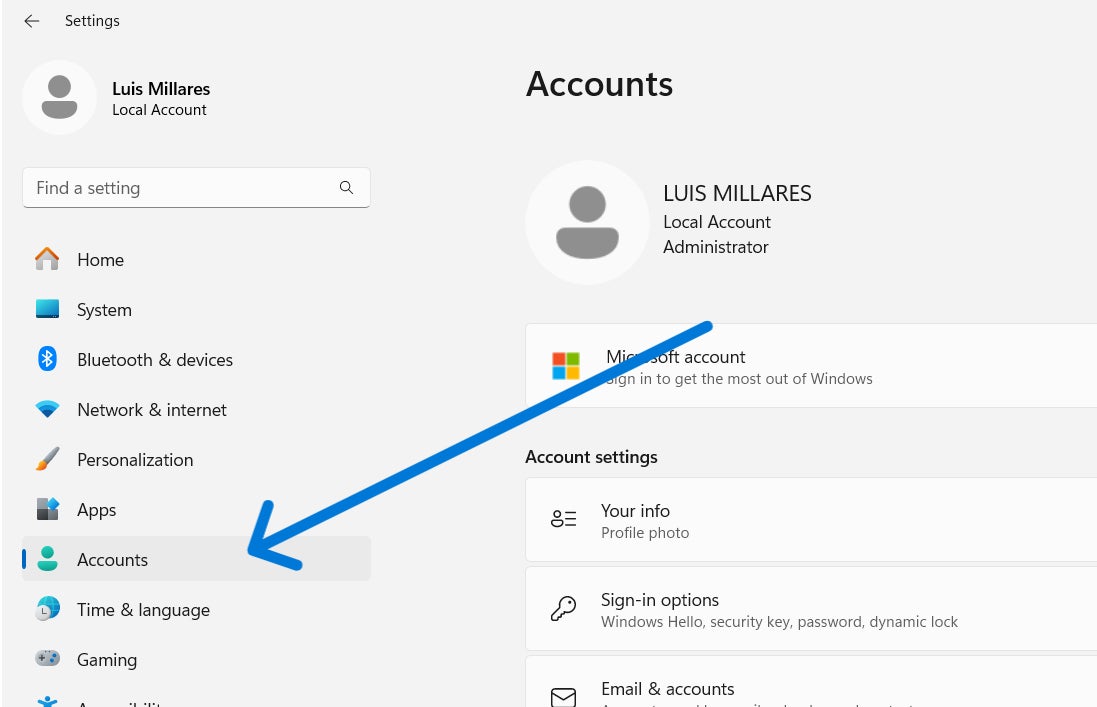
All the different choices related to accounts on your Windows 11 computer are stored in the Accounts section. This includes your personal details, email and accounts, device access, and others.
It also encompasses all the configurations correlated with Sign-in options, which is the subsequent action we will take.
3. Press the Sign-in options tab.
Choose Sign-in options from the Accounts section. This area comprises all available methods to sign in to your device.
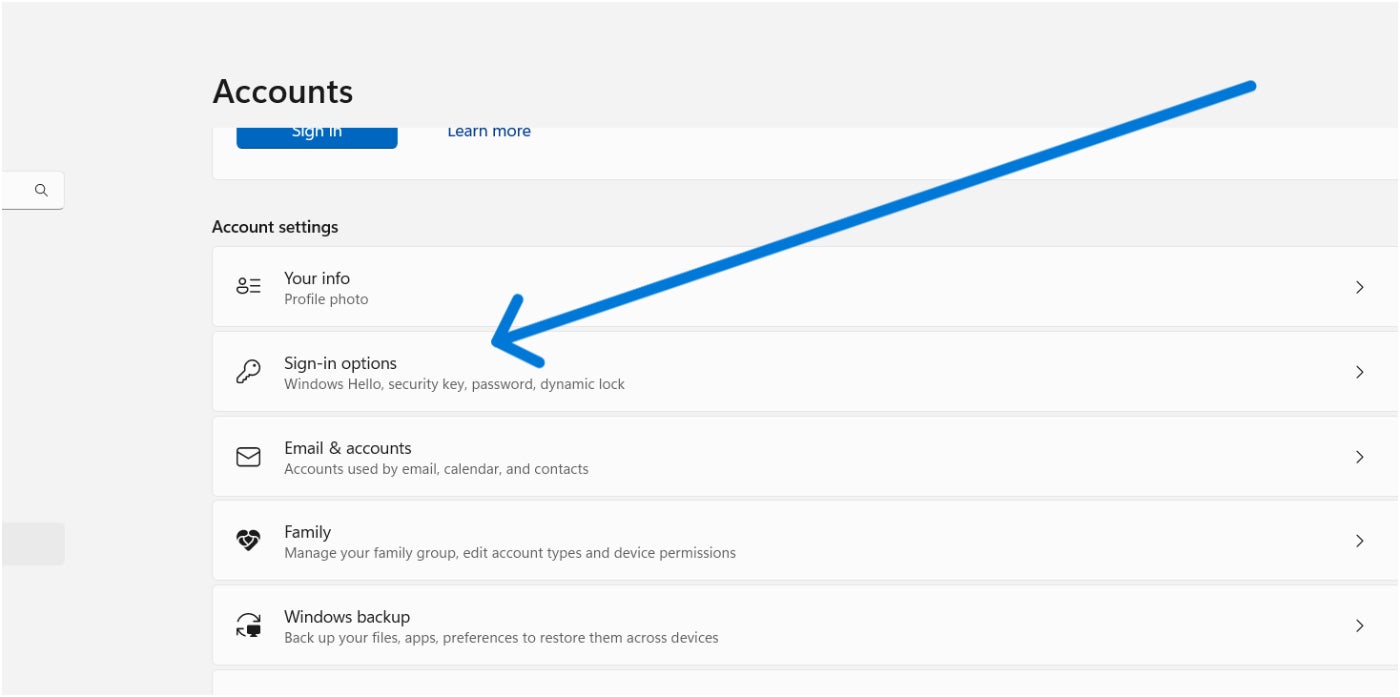
The common methods of signing in available here include password, PIN, and security key. If your laptop or desktop supports it, this is also where you can enable Windows Hello, allowing you to sign in with either facial recognition or fingerprint scanning.
Windows Hello is the main feature for biometric validation included in the Microsoft Windows operating system since 2015. Initially introduced in Windows 10, it is now the primary method for adding fingerprints in Windows 11.
4. Opt for Fingerprint scanning (Windows Hello) and choose “Configure.”
After accessing Sign-in options, we can now opt for Fingerprint scanning via Windows Hello. Clicking on Fingerprint Scanning reveals a “Configure” option.
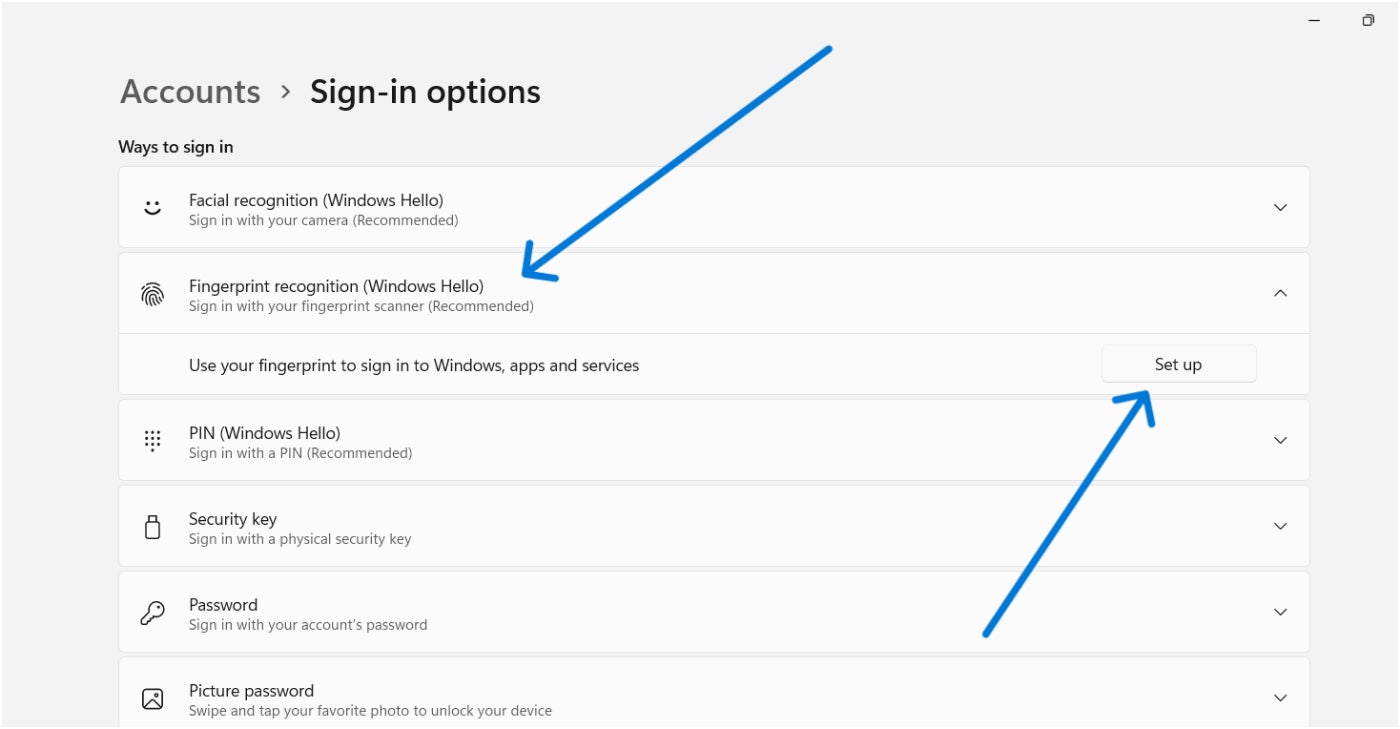
Proceed by selecting the Configure option, and the fingerprint setup process will initiate. Initially, Windows will prompt you to provide your PIN or create one if you haven’t set it up yet.
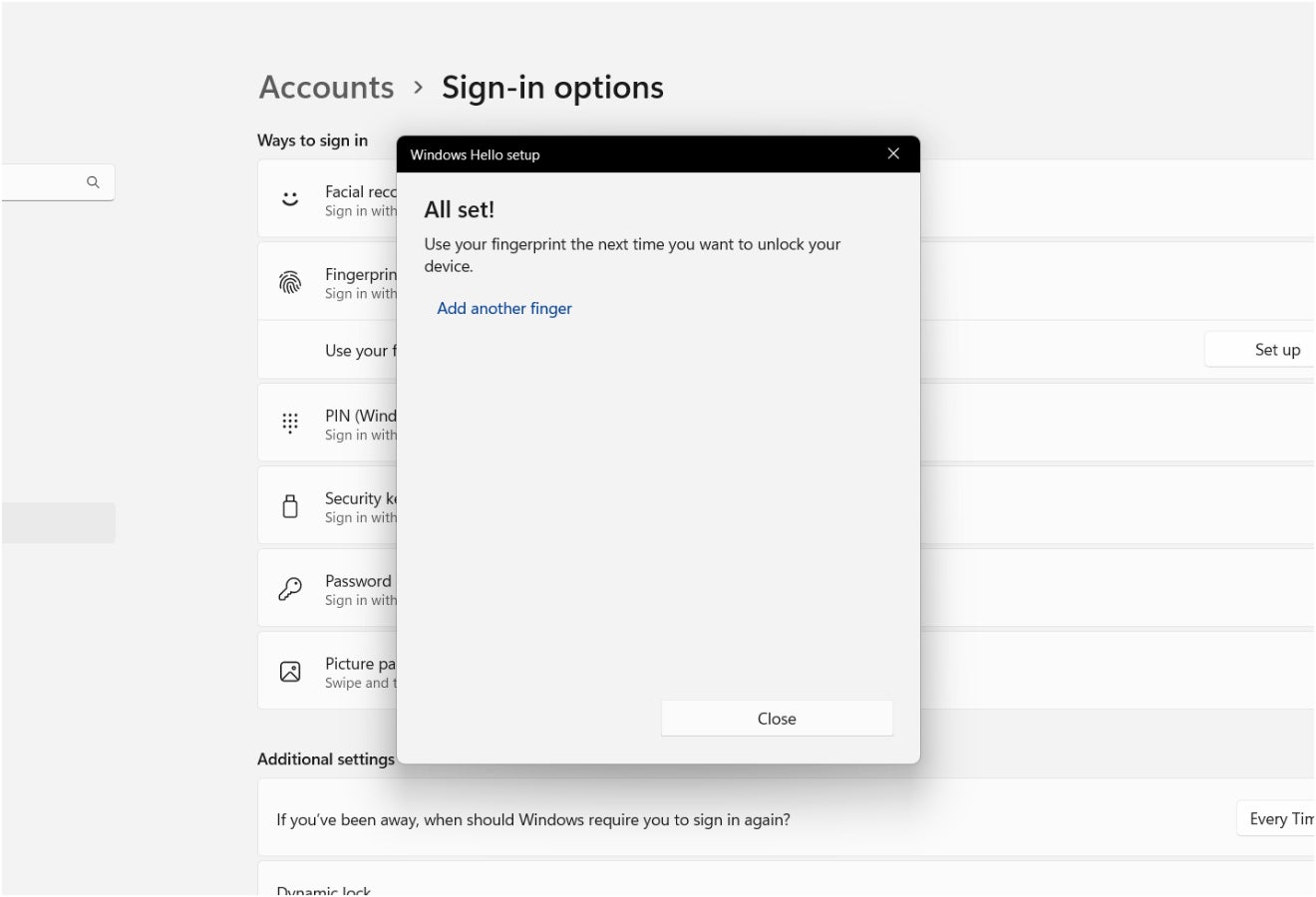
Presently, it’s conceivable to sign in to your laptop or desktop computer using fingerprint authentication.
Frequently posed inquiries about Windows 11 fingerprint log-in
Would I be able to utilize various fingerprints to log in to Windows 11?
Absolutely, Windows 11 enables you to insert several fingerprints to enter your computer. Essentially, this implies you can use both your right and left index fingerprints to open your computer.
If you’re pondering about the maximum count of fingerprints for Windows Hello, specific Microsoft help pages have indicated a limit of 10 fingerprints for 10 distinct accounts. All things considered, I don’t anticipate that the regular user will confront difficulties in including however many fingerprints as they desire.
Is fingerprint sign-in thoroughly protected on Windows 11?
For sure, fingerprint authentication is secure on Windows 11. Particularly realizing that your biometric information is exclusively yours makes it incredibly challenging for criminals to imitate or breach.
That said, contrasting with typical passwords or PINs, which can be vulnerable to brute force attacks, phishing, dictionary assaults, or credential stuffing.
Suppose I lack a fingerprint reader?
If your laptop or computer does not feature a fingerprint reader, no need to stress. You can easily acquire external fingerprint readers that connect to your device through USB, offering more or less similar fingerprint functionalities as the built-in ones.
Based on my investigations, these classes of fingerprint readers span from approximately $15 to $30, based on the manufacturer. Before purchasing one, though, I strongly advise skimming through customer assessments to verify their compatibility with Windows 11 and Windows Hello.
Being third-party readers and not proprietary to your Windows 11 machine, performance can fluctuate.
SEE: Securing Linux Policy (TechRepublic Premium)
What transpires if my fingerprint fails to function on Windows 11?
In cases where your fingerprint fails, Windows 11 will request your PIN as an alternative form of authentication. This is why Windows 11 demands both a PIN and your fingerprint/facial data whenever you engage Windows Hello.
If hitches with your fingerprint sensor persist, consider the following actions:
- Reboot your computer and retry.
- Reset your fingerprint data by erasing and re-entering your fingerprint.
- Incorporate a distinct fingerprint into your computer.
- Update the drivers for your fingerprint sensor using the Device Manager.
May I employ face identification rather than a fingerprint on Windows 11?
Indeed, Windows 11 enables you to utilize facial recognition as a substitute for fingerprint authentication. Facial recognition can be found in Windows Hello on the same configurations page where fingerprint authentication is accessible.
Windows 11 also provides the choice to have both fingerprint and facial recognition as login methods to your computer, simultaneously.
Advantages of utilizing fingerprint sign-in on your Windows 11 computer
For those interested in why it’s valuable to utilize fingerprint authentication on Windows 11, here are a few perks:
Accelerated access
With fingerprint unlock, a considerable improvement is speed. Previously, you had to key in your password or PIN, while fingerprint authentication merely requires a touch or hold — and you’re logged in.
Despite this subtle variance, I personally view this as an underestimated advantage as it streamlines the act of logging into your work laptop, without compromising overall security.
Heightens security
Employing fingerprint authentication bolsters security since biometric data is difficult to replicate or steal, distinguishing it from typical passwords or PINs.
For instance, assume the password utilized for your corporate laptop is identical to your personal password. Regrettably, if your personal password is implicated in a substantial data breach, your personal and professional computers are both jeopardized.
Users engaging fingerprint authentication are less prone to the same exposures, considering how challenging it is to pilfer biometric data compared to passwords or PINs.
Facilitates transition to passwordless authentication
For corporations, mandating fingerprint unlock within your enterprise can catalyze the transition to implementing a wholly passwordless system. Essentially, passwordless authentication refers to any validation technique necessitating something physical or unique to a user. This encompasses biometrics like facial recognition and fingerprints, hardware keys or tokens, and one-time passwords, among others.
Passwordless authentication is generally esteemed more secure than password-centric systems and can be impactful for firms with remote workers utilizing company-provided workstations. Though it may necessitate additional guidance, enforcing passwordless authentication can allay fears of targeted assaults against employees and fortify securing corporate assets.
To delve further, I suggest exploring our detailed article on passwordless authentication. This guide encompasses benefits, shortcomings, and prominent passwordless authentication solutions to mull over.
About Author