
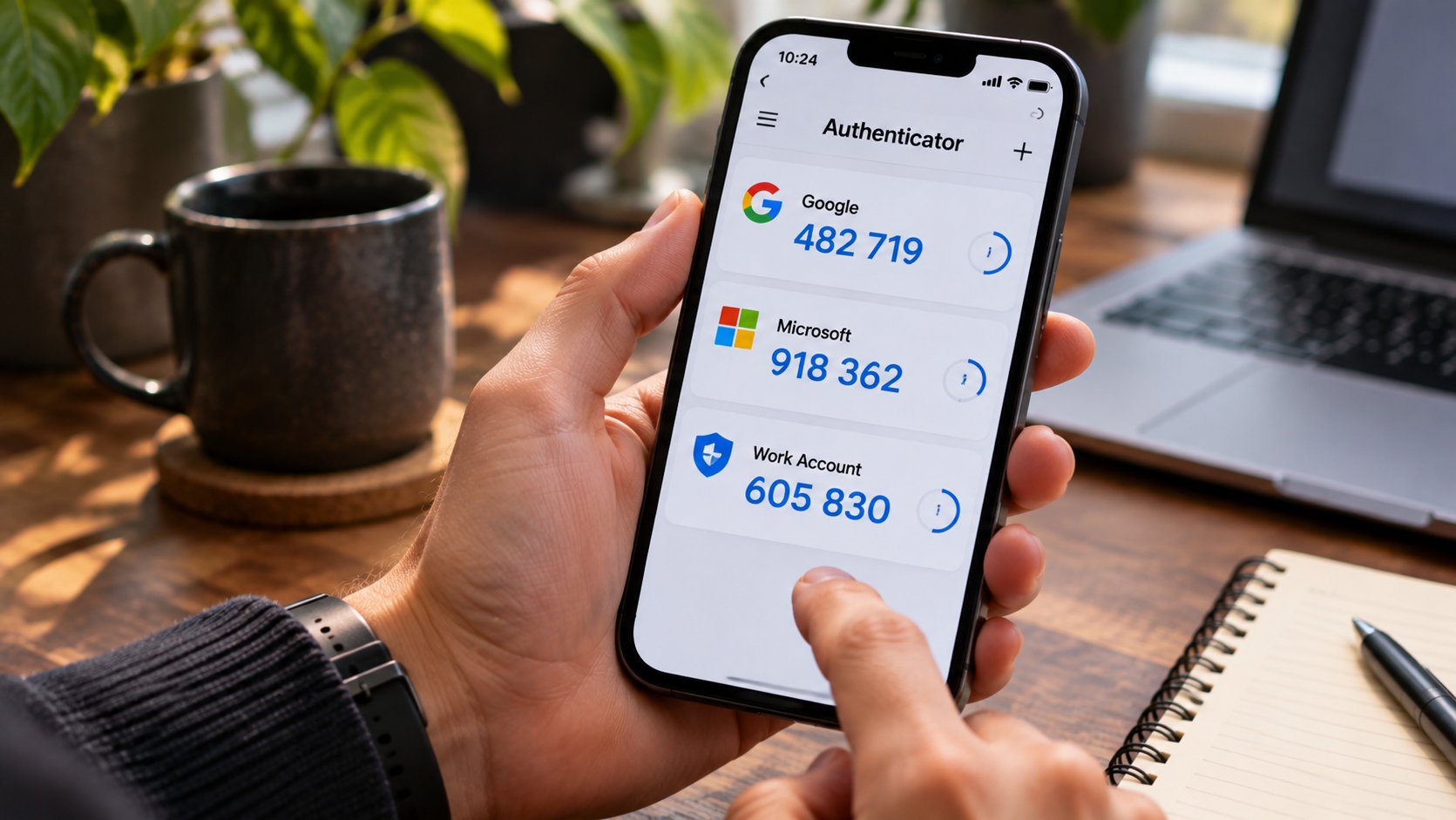
Google Authenticator vs Microsoft Authenticator vs 2FAS: Which Is Best?
Losing your phone is inconvenient. Losing the authenticator app that protects your email, banking, and work accounts can turn a routine replacement into a lengthy recovery process.
Google Authenticator, Microsoft Authenticator, and 2FAS all generate one-time verification codes, but they handle backups, device transfers, and account recovery differently. Google offers account-based synchronization, Microsoft integrates with workplace identity systems, and 2FAS provides encrypted backups with more control over how codes are stored.
Our picks at a glance:
- Best for everyday users: Google Authenticator, for straightforward syncing across devices.
- Best for Microsoft 365 workplaces: Microsoft Authenticator, for integration with Microsoft Entra ID.
- Best for backup control: 2FAS, for encrypted exports, cloud synchronization, and browser integration.
All three are free and available on Android and iOS. The deciding factor is how easily you can regain access when your phone is lost, damaged, or replaced.
Google Authenticator vs Microsoft Authenticator vs 2FAS: Features compared
| Feature | Google Authenticator | Microsoft Authenticator | 2FAS |
|---|---|---|---|
| Time-based verification codes | ✔ | ✔ | ✔ |
| Cloud backup or sync | ✔ Google Account | ✔ Microsoft account or iCloud | ✔ Google Drive or iCloud |
| Offline code generation | ✔ | ✔ | ✔ |
| Android and iOS | ✔ | ✔ | ✔ |
| Browser extension | ✖ | ✖ | ✔ |
| Entra ID push authentication | ✖ | ✔ | ✖ |
| Cross-platform code transfer | ✔ | ✖ Direct backup restore | ✔ Encrypted export |
| Local backup export | ✔ Account transfer | ✖ General export | ✔ |
| App lock or biometric protection | ✔ | ✔ | ✔ |
How we compared the apps
We evaluated each authenticator using official product documentation, focusing on backup and recovery, device migration, platform compatibility, account security, and workplace integration.
We also considered how much setup is required before a user can recover codes after losing a phone. No separate hands-on migration testing was conducted.
All three apps support time-based one-time passwords (TOTP), which generate codes that typically change every 30 seconds.
These codes improve account security but aren’t phishing-resistant. Attackers can still trick users into entering valid codes on fraudulent websites.
For accounts supporting passkeys or hardware security keys, those methods can provide stronger protection against phishing. TechRepublic’s authenticator apps comparison covers additional options, including hardware-backed authentication.
Google Authenticator: Best for simple syncing
Google Authenticator is a practical choice for people who want verification codes available across multiple devices.
Users can sign in with their Google Account to synchronize codes. Google confirms that synced codes are encrypted in transit and at rest.
The app also works without a Google Account, allowing codes to remain on the device instead of being synchronized.
That flexibility is useful, but users need to understand which option they’re using.
What happens if you lose your phone?
If your codes were synchronized, sign in to Google Authenticator on another supported device using the same Google Account.
If you used the app without an account and didn’t transfer your codes beforehand, you’ll need the recovery options provided by each affected service.
Google also supports transferring authenticator accounts between devices through its export and import process.
Advantages:
- Simple interface with minimal setup.
- Synchronization through a Google Account.
- Offline code generation.
- Support for transferring codes between devices.
Limitations:
- Synced codes depend on access to the associated Google Account.
- Users without synchronization need another recovery method.
- No dedicated desktop browser extension.
Choose Google Authenticator if: You want a straightforward authenticator for personal accounts and prefer automatic synchronization over managing backup files.
Microsoft Authenticator: Best for Microsoft 365 workplaces
Microsoft Authenticator supports standard verification codes alongside Microsoft-specific authentication features.
Organizations using Microsoft Entra ID can configure push notifications, passwordless sign-in, and other supported authentication methods.
The app’s biggest advantage is its integration with Microsoft’s identity platform. Its main complication is that personal and workplace credentials don’t recover in the same way.
What happens if you lose your phone?
Microsoft supports cloud backup for eligible personal Microsoft accounts and third-party verification codes.
On Android, users currently enable Cloud Backup through the app and select a personal Microsoft account. On iOS, backup uses Apple’s iCloud services.
However, Microsoft only supports restoring backups to the same device platform. An Android backup cannot be restored directly to an iPhone, or vice versa.
Work and school account names can be included in backups, but their authentication credentials aren’t restored. Users must re-register those accounts after restoring the app.
That can require help desk assistance if an employee no longer has access to the original device or an alternative authentication method.
Microsoft is also preparing a significant change to Android backups.
Beginning in January 2027, the company plans to move supported Authenticator backups on Android to Google One instead of relying on a personal Microsoft account. Users will need to enable the appropriate backup setting and maintain a device screen lock.
The change won’t extend backup support to work or school authentication credentials.
Microsoft’s move toward stronger authentication extends beyond backup recovery. TechRepublic previously reported on plans to replace Entra ID authentication through SMS and voice calls with more phishing-resistant methods, including passkeys.
Advantages:
- Strong Microsoft 365 and Entra ID integration.
- Standard verification codes and supported passwordless authentication.
- Backup for eligible personal and third-party accounts.
- Workplace authentication controls managed through Microsoft Entra.
Limitations:
- Work and school credentials require re-registration.
- Android and iOS backups aren’t interchangeable.
- Android backup requirements are changing in January 2027.
Choose Microsoft Authenticator if: Your organization uses Microsoft 365 or Entra ID and already has procedures for employee device replacement and authentication recovery.
2FAS: Best for encrypted backup control
2FAS Auth offers a different approach, emphasizing local code storage, optional cloud synchronization, and portable backups.
It generates verification codes offline and supports synchronization through Google Drive on Android or iCloud on iOS.
2FAS also provides a browser extension that communicates with the mobile app, allowing users to approve requests and enter codes more conveniently on desktop websites.
Unlike Google Authenticator’s account-based synchronization, 2FAS provides a dedicated backup export option that users can password-protect.
What happens if you lose your phone?
If synchronization was enabled, install 2FAS on a replacement phone and reconnect the same Google or Apple account.
Cloud synchronization works within the same operating-system ecosystem. Moving between Android and iOS requires exporting and importing a backup file.
2FAS recommends password-protecting exported files because an unencrypted export can expose the secret keys used to generate verification codes.
Users should also verify that their cloud backup is active before replacing a device.
On iOS, iCloud synchronization can activate automatically when iCloud is available. Android users can enable Google Drive synchronization through the app’s backup settings.
If no backup exists and the original device is unavailable, 2FAS cannot independently recover lost codes.
Advantages:
- Local code storage with optional cloud synchronization.
- Password-protected backup exports.
- Android-to-iOS migration through backup files.
- Browser extension support.
- PIN and biometric app protection.
Limitations:
- Recovery depends on having configured synchronization or saved a backup.
- Cloud synchronization is platform-specific.
- Users must securely store exported backup files and their passwords.
Choose 2FAS if: You want encrypted backup exports and optional cloud synchronization, or regularly switch between Android and iOS.
Which authenticator is easiest to recover?
The answer depends on whether you lose a phone, switch operating systems, or need to restore workplace credentials.
If you lose your phone:
Google Authenticator offers straightforward recovery when codes are synchronized to your Google Account. Microsoft restores eligible personal and third-party codes through its backup system, while 2FAS restores codes through cloud sync or an existing backup file.
None can guarantee recovery if the necessary backup or alternative sign-in method is missing.
If you switch from Android to iPhone:
Google Authenticator can transfer codes through its supported account synchronization or transfer process.
2FAS supports cross-platform migration through exported backup files.
Microsoft Authenticator doesn’t support direct restoration of Android backups onto iOS, so users may need to reconfigure affected accounts.
If you’re managing employee accounts:
Microsoft Authenticator is the strongest fit for organizations already using Entra ID, but IT teams must plan for work-account re-registration.
Google Authenticator and 2FAS are useful for standard TOTP codes, although they don’t replace enterprise identity management or centrally enforced authentication policies.
How to avoid losing access to your accounts
Before changing phones, complete these checks:
- Verify your backup. Open the authenticator app and confirm that synchronization or backup is enabled where supported.
- Save recovery codes. Store service-issued backup codes securely, separate from your phone.
- Test your replacement device. Confirm that important accounts work before resetting or trading in the old phone.
- Check workplace requirements. Ask IT whether managed accounts require re-registration or additional approval.
- Protect backup files. Encrypt exported authenticator data and keep its password somewhere secure.
TechRepublic’s two-factor authentication guide explains additional recovery considerations, including the role of backup codes when an authentication device is lost.
Which authenticator app should you choose?
Google Authenticator is the best choice for most personal accounts. Its straightforward interface and Google Account synchronization make it convenient for everyday use.
Microsoft Authenticator is the better fit for Microsoft 365 organizations. Entra ID integration offers capabilities beyond standard verification codes, although workplace account recovery requires planning.
2FAS is the strongest option for users who want control over their backups. Its encrypted exports, cloud synchronization, and browser extension offer flexibility, particularly for people who change devices frequently.
Whichever app you choose, configure recovery before you need it. A working backup and a securely stored recovery code can save hours of account recovery after a lost phone.
Also read: Microsoft’s latest Windows Hello sign-in update lets users enter their PIN without waiting for facial or fingerprint recognition, although the change is currently limited to Windows Insider testing.
About Author